How to show a notification in VR and on desktop
Advanced Framework Pro shows a notification with one call, Show Default Notification, given a pawn, an icon, a line of text, a colour and a duration. It stacks with other notifications, plays a sound and removes itself, in spatial UI in VR and on the HUD on desktop and mobile. By the end of this you will have confirmations and warnings that tell the player something and then get out of the way.
At a glance
Anywhere with a pawn reference
└─ BFL_Notifications › Show Default Notification
   Pawn, Icon (texture), Text, Color (PDA_Color), Duration (6 s)  → widget
Custom look:  BP_Notification + WBP_Notification, Spawn Inside Notification Container
A decision instead of a message:  BFL_Popups › Popup_ShowPopup_Default
Steps
- The pawn needs the UI ability that hosts the notification container; the shipped pawns have it.
- From any Blueprint with a pawn reference, call Show Default Notification (
BFL_Notifications). - Pass an icon texture, the text, a
PDA_Colorsuch as the theme's success or warning colour, and a duration. Six seconds suits most messages. - For a message to one player in multiplayer, call it on that player's pawn; for everyone, call it for each pawn.
Notes
Use notifications for things that need no answer. For a decision the player must make, use a popup
from AFS_UI_Popups instead.
To change the look, derive from BP_Notification and WBP_Notification together and spawn the pair
through Spawn Inside Notification Container. The object holds the data, the widget draws it.
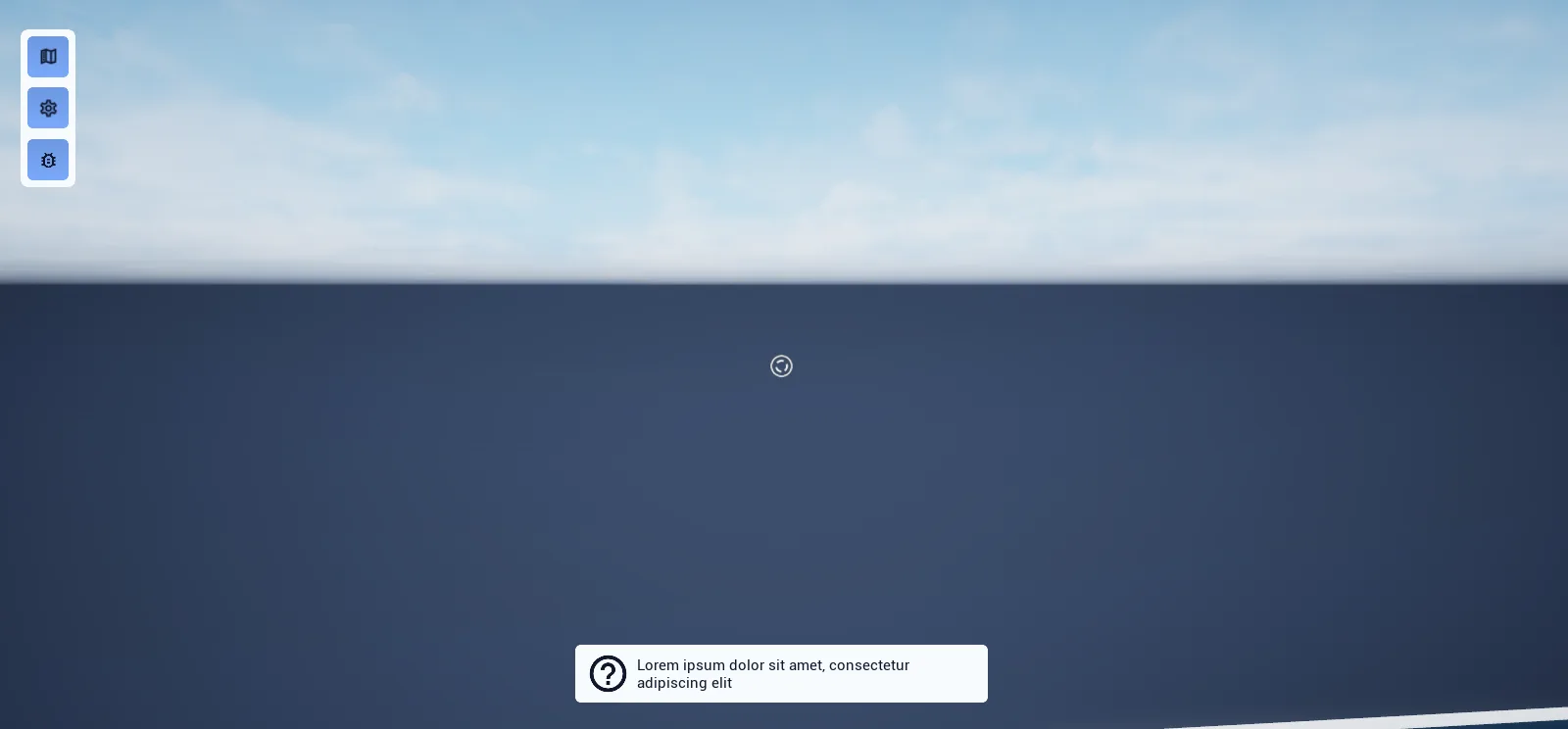
Map_Examples_Notifications has a big press button: pick type, text length and duration on the table,
press it, and watch the notification arrive.
Nothing appears? The pawn lacks the UI ability that hosts the container.