How to label parts of a 3D object in VR
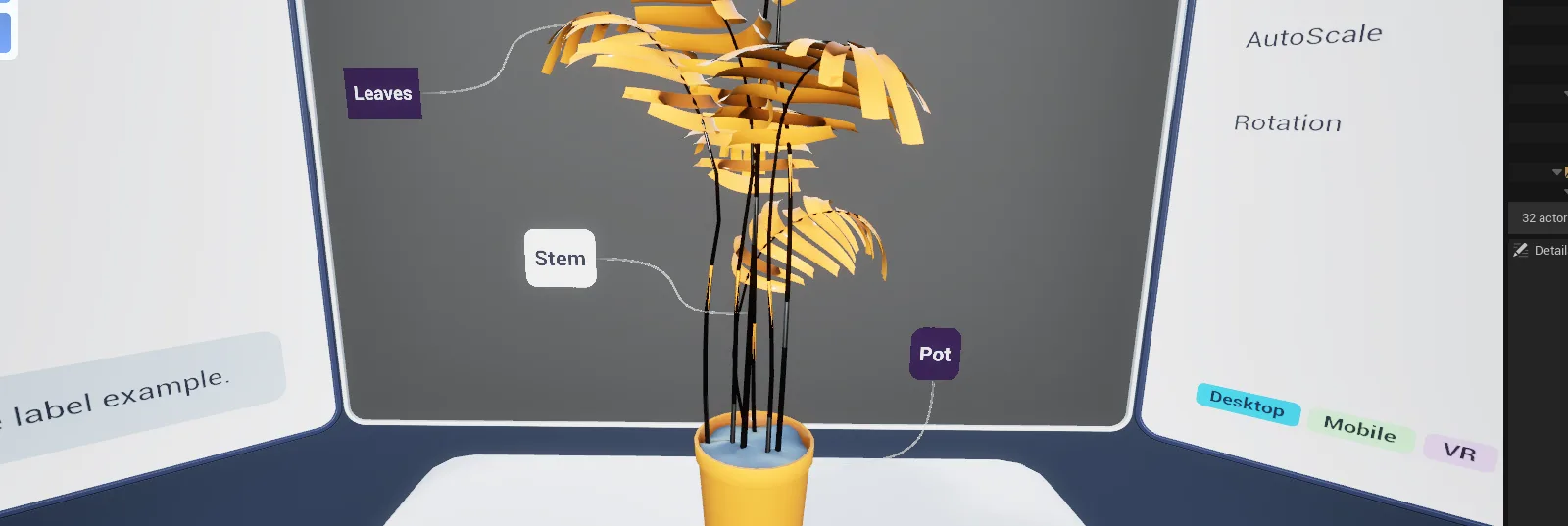
Advanced Framework Pro labels a part of an object with one component, BPC_Label_Simple, placed where the text should float. It points at the part with an arrow or a leader line, turns to face the player and fades with distance, and it moves with the object because it is a component, not an actor in the level. By the end of this you will have named parts on a mesh with labels that update at runtime.
At a glance
Your actor
├─ BPC_Label_Simple "Label_Base"    Title, Use Arrow = true          (label right next to the part)
├─ BPC_Label_Simple "Label_Elbow"   Title, Use Spline = true, Direction,
│                                   Spline Attach Component Tag or Spline Attach Socket
└─ BPC_Label_Info                   title, subtitle, body, button (optional)
Rule: Use Arrow or Use Spline, never both.    Runtime: Update Title
Steps
- Open the actor Blueprint and add a
BPC_Label_Simpleper part. Move each component to where its text should sit, a little off the part. - Set Title to the part's name.
- Choose how the label points: Use Arrow for a label right next to its part, or Use Spline for a leader line to a part further away. Use one or the other, not both.
- For a leader line, set Spline Attach Component Tag or Spline Attach Socket so the line ends on the part itself, and Direction to the side the line leaves the frame.
- Call Update Title on the component to change the text at runtime.
Notes
BPC_Label_Info is the same component with a title, subtitle, body text and a button, for a full
information card rather than a name.
Show labels only when they help: bind to the interaction's highlight delegate and activate the label on hover, or call the component when the player reaches a step.
Labels use the active theme, so they restyle with everything else. For a different frame, swap Frame Widget.
Each label is a world-space widget. Keep Draw Size modest and rely on distance fade when labelling many parts.
Map_Examples_Labels shows three labels on a robot arm with the arrow, line, colour and scale settings
switchable from the table, and an info label on a statue.