Home › Workflows › Make an object selectable
Make an object selectable
By the end of this you will have an object that highlights on hover and fires an event when clicked, pointed at with a laser, or touched with a fingertip.
Steps
- Open the actor Blueprint and add a
BPC_Interaction_Selectcomponent. - Set Highlight Class and Highlight Color.
- Optionally set Select Sound.
- In the Event Graph, bind to the component's On Select delegate.
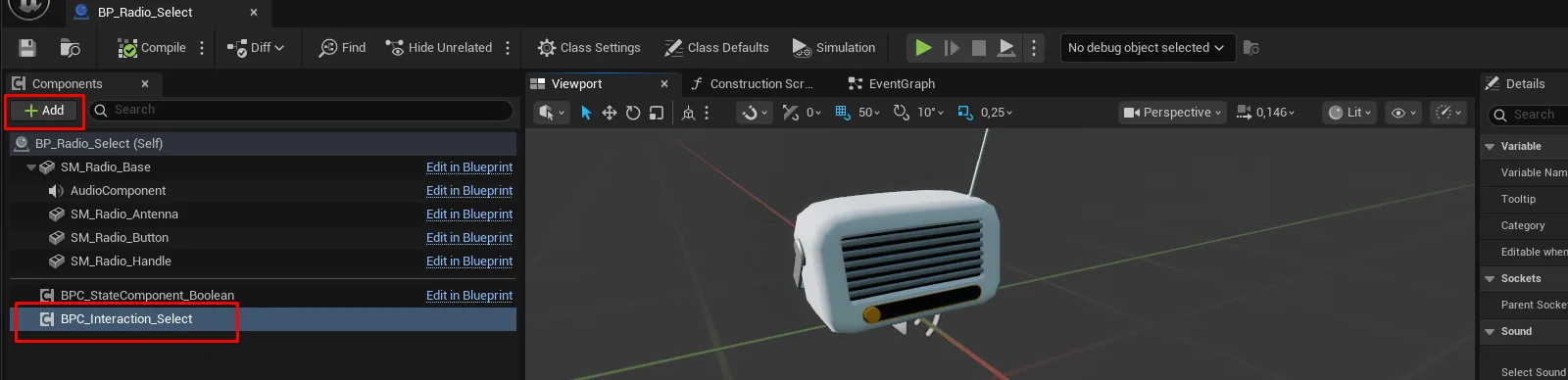
howto_selectable_01.pngAdding the select interaction
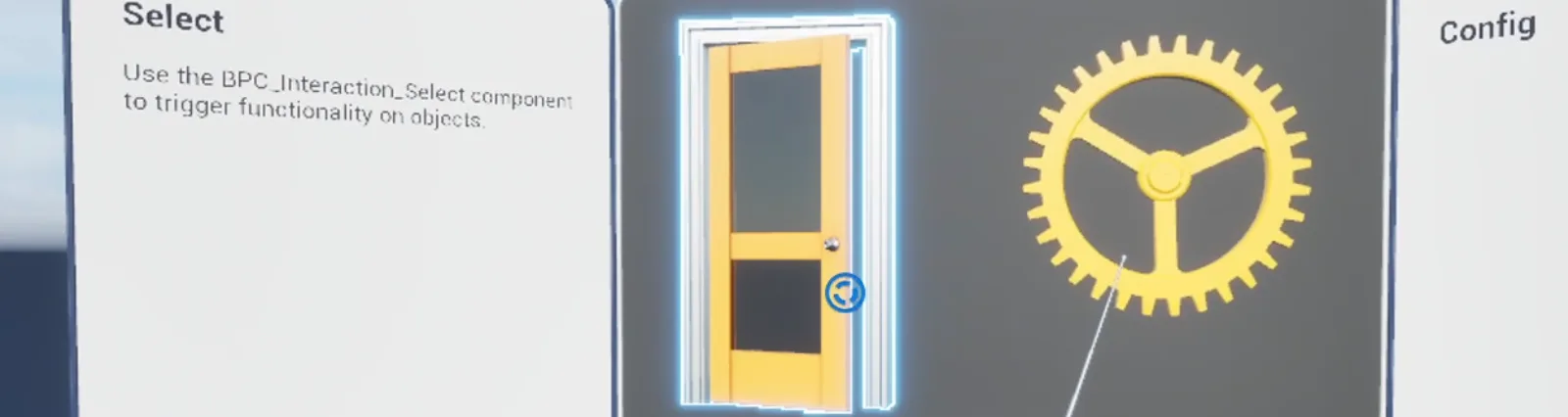
AFS_UX_Select_result.pngThe object selected in play, highlight active
Notes
If the actor has several meshes and only some should be clickable, tag those components and set Relevant Components to that tag.
To veto selection conditionally, implement Interface_Select and return Override = true with
Is Selectable = false.
To make a laser terminate somewhere other than the raw trace hit — the centre of a control, say —
implement Select_HitLocationOverride.