AFU_Debug
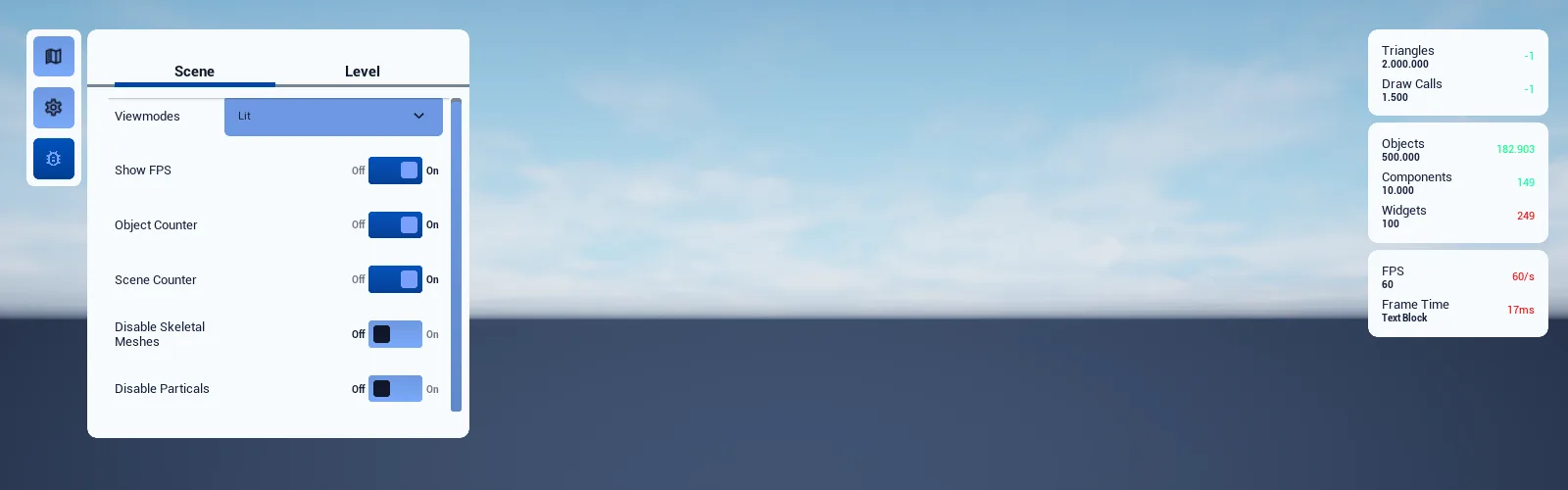
Runtime debug overlay showing FPS, frame time, draw calls, triangles, object and widget counts, backed by a C++ stats library.
What it gives you
- Live performance readout in VR and on desktop
- Scene and object statistics
- A debug page for the menu
Requires
Required by
None
Description
Performance problems in VR are hard to diagnose from outside the headset. AFU_Debug puts the
numbers in front of the player: frame rate, frame time, draw calls, triangle count, primitive and
component counts, total UObjects, and total and visible widget counts.
UAFUDebugStatsLibrary provides the values in C++; the widgets present them through the info panel
system, and DA_WidgetPage_Debug drops the whole thing into the menu as a page.
Setup
- Enable
AFU_Debug. - Add
DA_WidgetPage_Debugto your pawn'sBPC_Pawn_MenuPages list.
Usage
Reading the overlay
Widget count is the one most often overlooked — a high visible widget count is a common cause of poor VR frame times.
Using the stats in your own UI
Call the UAFUDebugStatsLibrary functions directly; they are Blueprint-pure and available anywhere.
Key properties
| Property | When to change |
|---|---|
| Which panels are shown | Add or remove the info panel widgets from the debug page |
Extending
Add your own info panel widgets deriving from WBP_Base and register them alongside the shipped ones.
Performance notes
The overlay itself costs draw calls and widget updates. Remove the debug page from shipping builds rather than only hiding it.
Example map
Available as a menu page in Map_Examples_Lobby.
Troubleshooting
Stats read zero. The stats library needs a world context; ensure the calling widget has a valid owning player.
API reference
Every blueprint asset in this plugin. Expand an asset to see its members.
Libraries
BFL_Debug1 members
| Kind | Name | Signature | Description |
|---|---|---|---|
| fn | getPlatformType | (__WorldContext: Object, out PlatformType: name) | Returns the platform the build is running on as one of PC, PC_VR, Mobile, Mobile_VR, Console or Console_VR. Windows, Mac and Linux fold into PC, Android and iOS into Mobile, and PlayStation, Xbox and Switch into Console, with the VR variant chosen whenever a head mounted display is enabled. An unrecognised platform comes back as None. |
Widgets
WBP_Debug1 members
| Kind | Name | Signature | Description |
|---|---|---|---|
| event | WidgetElement_PostInitiate | () | Called by the widget system once the whole tree has been initiated and themed. Left empty on the debug menu, which needs no set-up beyond the pagination bar that switches between its Scene and Level pages. |
WBP_Debug_Levels4 members
| Kind | Name | Signature | Description |
|---|---|---|---|
| fn | GetAllLevels | () | Walks every actor in the world, collects the name of each streaming level they live in, and adds one button to the level group per name before refreshing which of them show as selected. Call it once as the page opens; calling it again appends a second button for every level already listed. |
| fn | UpdateLoadedLevels | () | Refreshes the level list so a checkbox is ticked for each streaming level that is currently visible. Runs at the end of Get All Levels and after every toggle, and is worth calling again whenever levels are streamed in or out behind the menu's back. |
| event | WidgetElement_PostInitiate | () | Called by the widget system once the whole tree has been initiated and themed. Left empty here, so the level list stays empty until something calls Get All Levels. |
| event | OnButtonClicked | (Group: WBP_Group_Button, Index: int, ID: name) | Called when one of the level checkboxes is clicked. Loads that streaming level if it is not visible and unloads it if it is, then re-ticks the list. Both paths flush level streaming, so the game stalls until the level has finished loading or unloading. |
WBP_Debug_Scene10 members
| Kind | Name | Signature | Description |
|---|---|---|---|
| event | OnSelectionChanged | (DropDown: WBP_DropDown, Index: int, ID: name) | Called when the Viewmodes drop-down changes and runs the matching viewmode console command on the first local player controller, from lit and unlit through to collision visibility and HLOD colouration. The command is picked by the drop-down's index, so reordering its options changes which view mode each entry applies. |
| event | OnSelectionChanged_1 | (Button: WBP_Button) | Called when the Disable Particals toggle switches itself, and left empty. The button flips its own appearance and nothing else happens, so put the particle scalability command you want applied here. |
| event | OnSelectionChanged_2 | (Button: WBP_Button) | Called when the Disable Skeletal Meshes toggle switches itself, and left empty. The button flips its own appearance and nothing else happens, so put the skeletal mesh scalability command you want applied here. |
| event | WidgetElement_PostInitiate | () | Called by the widget system once the whole tree has been initiated and themed. Left empty, so the three panel toggles open in the state the designer left them in; call Update FPS State, Update Objects and Update Scene if they should match the panels already on screen. |
| event | OnClicked | (Button: WBP_Button) | Called when the Show FPS toggle is clicked. Shows or hides the frame rate info panel on the local player pawn's heads-up display, spawning the panel host if it is not there yet, then reads the result back onto the toggle through Update FPS State. |
| event | UpdateFPSState | () | Sets the Show FPS toggle to match whether the frame rate info panel is currently on the player pawn's display. Call it whenever that panel is opened or closed from somewhere other than this page. |
| event | UpdateObjects | () | Sets the Object Counter toggle to match whether the object count info panel is currently on the player pawn's display. Nothing on this page calls it, so call it yourself after that panel is opened or closed. |
| event | OnClicked_1 | (Button: WBP_Button) | Called when the Scene Counter toggle is clicked, and left empty, so the button does nothing at all. Toggle the scene statistics info panel here the way the Show FPS button does, and call Update Scene afterwards to reflect it. |
| event | OnClicked_2 | (Button: WBP_Button) | Called when the Object Counter toggle is clicked, and left empty, so the button does nothing at all. Toggle the object count info panel here the way the Show FPS button does, and call Update Objects afterwards to reflect it. |
| event | UpdateScene | () | Sets the Scene Counter toggle to match whether the scene statistics info panel is currently on the player pawn's display. Nothing on this page calls it, so call it yourself after that panel is opened or closed. |
Widgets/Helper
WBP_Stat_Row6 members
| Kind | Name | Signature | Description |
|---|---|---|---|
| var | MainTextDescription | text | Label naming what the row measures, such as FPS, Objects or Draw Calls. Set it on the row instance in the designer; nothing in the graph rewrites it while the game runs. |
| var | MaxValueState | int | Figure treated as the top of the range when the readout is coloured, and the number shown in the caption under the label. Set Max Value writes both at once; left at zero the colour ramp has no range to work against and the readout sits at one end of it. |
| var | FormatDescription | text | Text the current figure is substituted into before it is shown, {Value} by default. Put {Value} where the number belongs and add the unit around it, as in {Value}ms or {Value}/s. |
| var | PercentageDescription | float | Fraction of Max Value over which the readout changes colour, 0.2 by default. At 0.2 the figure stays green until it passes eighty per cent of Max Value and is fully red by the time it reaches it; raise it to start the shift earlier. |
| event | UpdateValue | (CurrentValue: int) | Writes a new figure into the row through the Format text and recolours it by how close it sits to Max Value, running from green up to red across the top slice of the range set by Percentage. Invert swaps the two ends for figures where high is good. |
| event | SetMaxValue | (MaxValue: int) | Stores a new ceiling for the row and writes it into the caption under the label. Call it before the first Update Value, since a row left at zero has no range to colour against. |
Widgets/InfoPanels
WBP_InfoPanel_FPS2 members
| Kind | Name | Signature | Description |
|---|---|---|---|
| event | UpdateFPS | () | Pushes the current frame rate and frame time in milliseconds, both rounded to whole numbers, into the two rows of the panel. Nothing drives it on its own, so call it from a timer or a tick if the readout should keep moving. |
| event | WidgetElement_PostInitiate | () | Called by the widget system once the whole tree has been initiated and themed. Left empty, so both rows stay blank and keep a Max Value of zero until something calls Update FPS and Set Max Value on them. |
WBP_InfoPanel_Objects2 members
| Kind | Name | Signature | Description |
|---|---|---|---|
| event | UpdateCount | () | Pushes the total object count, component count and widget count of the running game into the three rows of the panel. Nothing drives it on its own, so call it from a timer or a tick to keep the counts current. |
| event | WidgetElement_PostInitiate | () | Called by the widget system once the whole tree has been initiated and themed. Left empty, so the three rows stay blank and keep a Max Value of zero until something calls Update Count and Set Max Value on them. |
WBP_InfoPanel_Scene2 members
| Kind | Name | Signature | Description |
|---|---|---|---|
| event | UpdateCount | () | Pushes the triangle count and the number of draw calls of the last frame into the two rows of the panel. Nothing drives it on its own, so call it from a timer or a tick to keep the readout current. |
| event | WidgetElement_PostInitiate | () | Called by the widget system once the whole tree has been initiated and themed. Left empty, so both rows stay blank and keep a Max Value of zero until something calls Update Count and Set Max Value on them. |